Category Archives: math

Strict inequalities (greater/less than) in text-mode

Strict inequalities are widely used in math equations as well as within text for comparisons. They can be produced using the ordinary (inline) math-mode ($...$) without loading a specific package.

c > d

$c > d$

d < c

$d < c$

In order to omit the math-mode within a text-paragraph, LaTeX knows text-mode commands for these symbols.

Greater than (>):

\textgreater

Less than (<):

\textless

Non-strict inequalities (\le and \ge), however, can only be produced using the inline math mode.

a \le b

$a \le b$

b \ge a

$b \ge a$

Finally, the equal symbol (=) is available in both text- and math-mode.


Generating dummy text/blindtext with Latex for testing

I was often using any of the available “lorem ipsum” generators on the web while testing different things in Latex until I discovered that the Latex distribution provides packages generating blind text, which is definitely more convenient. With just a few lines of code, these packages will generate paragraphes, even whole documents with sections, paragraphs of text, lists, etc.

The first package that I will introduce is the “blindtext” package. First the language option as well as the package have to be loaded. Make sure you get the order right, otherwise your text might appear in latin by default.

\usepackage[english]{babel}
\usepackage{blindtext}

The language options english, (n)german and latin are available. French is also available, but in a preliminary version. Try it out yourself :-) .

Now you are ready to create a paragraph or even a whole document with just one line of code.

For few/more paragraphs of normal text:

\blindtext
\Blindtext

For a small/large document:

\blinddocument
\Blinddocument

In an arbitrary number of repetitions, e.g.

\blindtext[5]

Furthermore,

\blindlist{env}[x]

creates a list with “x” being the number of items generated. The environment can be set to itemize, enumerate or description.

A more direct way to generate lists is by using the commands:

\blinditemize
\blindenumerate
\blinddescription

and their extended versions with capital letters are available. Similarly, the number of items is defined through the optional argument, e.g.

\blindenumerate[10]

If you want math within the text, use

\blindmathtrue
\blindmathfalse

respectively.

It is also possible to generate text with math including formulas, using

\blindmathpaper

The “lipsum” package is a more basic package. It generates a certain number of the standard “lorem ipsum” text:

\usepackage{lipsum}
...
\lipsum
\lipsum[3-56]

By default, the package will either generate slightly more than a single page (fist line). Alternatively, it generates an arbitrary number of paragraphs (second line).

For more information, please refer to the package information of the blindtext as well as the lipsum packages.


Displaying text inside the math-environment

By default, Latex will print text within formulas in italics, omitting white spaces. Now if you need to add normal text into a formula or even write a formula using words, you can do this with the text-command inside the math-environment:

\text{...}

Example:

\text{velocity} = \frac{\text{distance}} {\text{unit of time}}

velocity=\frac{distance}{unit of time} \to \text{velocity} = \frac{\text{distance}}{\text{unit of time}}

Btw. The “text-command” will also take care of the spaces, which would otherwise be ignored.

Note:
Spaces in the math-environment can be produced using:

  • \; for a thick space,
  • \: for a medium space,
  • \, for a thin space and
  • \! for a negative thin space.
Intertext

Using the math-environment align to display a series of equations, whole lines of text can be added in between using the “intertext”-command without affecting the alignment of the equations:

\begin{align}
...
\intertext{...}
...
\end{align}

Example:

\begin{align}
F = f_1+f_2+f_3+...+f_n
\intertext{can be written as}
\sum_1^n{f_i}
\end{align}


Math-formulas with Latex on WordPress

For those who are new to WordPress or haven’t heard about it yet:
Wordpress is doing Latex (at least whatever formula you can produce in a math-environment).
Just switch to math-mode by typing:

your formula

Example:
f(x_1,x_2)=x_1^2+x_2^2
produces
f(x_1,x_2)=x_1^2+x_2^2

The original post on the official WordPress blog can be found here.


Of theorems, lemmas and proofs

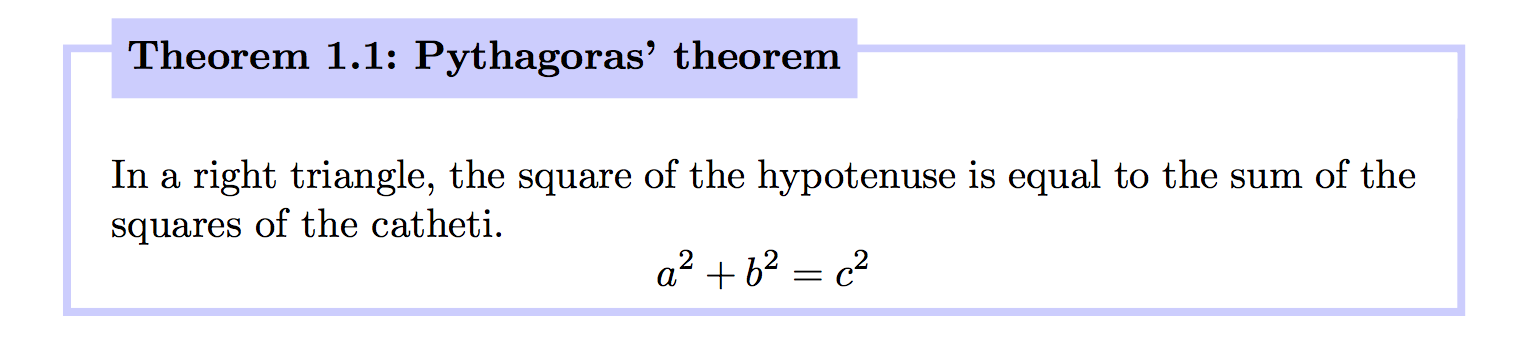
Different packages of Latex provide nice and easy-to-use environments for theorems, lemmas, proofs, etc. The following post will show you the mostly used layouts and how to change numbering. 
Theorem styles: For theorems, corollaries and lemmas, you need the following package:

\usepackage{amsthm}

which allows you to define new environments using either:

\newtheorem{env_name}{caption}[within]

or

\newtheorem{env_name}[numbered_like]{caption}

 where

  •  env_name: Environment name
  • caption: Text printed before the number, e.g. Theorem, Lemma, etc.
  • within: The name of a defined counter
  • numberered_like: Name of a defined theorem-like environment

Note: The command may at most have one optional argument. Let me give an example: First we define a new theorem “Theorem”, which takes the numbering of the section plus a consecutive number:

\newtheorem{thm}{Theorem}[section] 

For your theorems you can now use the defined environment:

\begin{thm}...\end{thm}

 For lemmas which have the same numbering as the previous thm-environment, we need to define a new theorem type:

\newtheorem{lem}[thm]{Lemma}

 Note: Environments different from thm, lem or cor need to be defined previously, having a different counter which starts from zero:

\theoremstyle{remark} 
\newtheorem{rem}{Remark}
\begin{rem}This is a remark.\end{rem}

Note: To omit the numbering, you can use the star as for chapters, sections, etc.:

\newtheorem*{lem}[thm]{Lemma}

Proof: A proof usually comes without a numbering as it follows a numbered theorem, corollary, etc. For a proof, you need the following package:

\usepackage{amsthm}

and then you can directly use the proof-environment:

\begin{proof}...\end{proof}

The closing statement automatically prints a qed-sign (square box) on an empty line after the last statement, terminating the proof.Note: If you want to place the qed-sign on the last line, i.e. if your proof ends with an equation, you can use the command:

\qedhere

inside the equation-environment (before the \end{equation}).


Number sets (prime, natural, integer, rational, real and complex) in Latex

Number sets such as natural numbers (\mathbb{N}) or complex numbers (\mathbb{C}) are not provided by default by Latex. It doesn’t mean that Latex doesn’t know those sets, or more importantly their symbols…

There are two packages which provide the same set of symbols. You can choose either of them:

\usepackage{amsfonts}

or

\usepackage{amssymb}.

Now, you have access to all the different sets through the command:

\mathbb{set}

Examples:

\mathbb{P} for prime numbers using \mathbb{P},
\mathbb{N} for natural numbers using \mathbb{N},
\mathbb{Z} for integers using \mathbb{Z},
\mathbb{I} for irrational numbers using \mathbb{I},
\mathbb{Q} for rational numbers using \mathbb{Q},
\mathbb{R} for real numbers using \mathbb{R} and
\mathbb{C} for complex numbers using \mathbb{C}.

Positive real numbers can now be easily expressed :

\mathbb{R}_{\geq0} by typing \mathbb{R}_{\leq0}.


Placing a reference on top of an arrow, equality or equivalence symbol

The following works for any math symbol which you want to put on top of one another.

The command \displaystyle_{command1}^{command2} does the job (where “command1″ is what you want to place below and “command2″ above). The disadvantage is it moves one symbol slightly downwards in such a way that the space between the two symbols is vertically centered.
displaystyle_exp.gif
Another possibility to solve the problem is the command \stackrel{Above}{Below}. Here, the symbol placed “below” will be vertically centered (e.g. putting a reference above an equality or equivalence symbol) with the size of the “above”-symbol slightly decreased and place right on top.
stackrel_exp.gif


Math Symbols (complete reference)

Let me start with something simple, but very useful. Everytime you type a formula and you don’t know some of the symbols, just check this complete symbols reference which comes in very handy. On the same website, you can find other helpful information on LaTex. But the math symbol reference is definitely worth a bookmark.


Follow

Get every new post delivered to your Inbox.

Join 316 other followers